
توضیحات
AcrossAI Model Manager gives site administrators full control over three aspects of the WordPress 7.0 AI client: which model is used per capability, how long requests are allowed to run, and a complete audit log of every AI generation call made on the site.
Model Preferences
By default, WordPress picks the first available model from your configured AI connectors. This plugin adds a settings page under Settings > AcrossAI Model Manager where you can pin a specific model per capability — and that model will always be prioritised.
- Text Generation — preferred model for all text-generation tasks
- Image Generation — preferred model for image-generation tasks
- Vision / Multimodal — preferred model for vision and multimodal tasks
HTTP Request Timeout
Set a site-wide timeout (in seconds) for all wp_ai_client_prompt() calls. Works directly with the WordPress 7.0 built-in AI client — no additional plugins required.
AI Request Logging
Every successful AI generation call is automatically logged to a dedicated database table. The Settings > AI Logs admin page provides a sortable, paginated view of all requests with:
- Provider, model, and capability for each call
- Full prompt text and response text (expandable detail view)
- Token usage (prompt, completion, total) and request duration
- Source tracking — which plugin, theme, mu-plugin, or WordPress core file triggered the request, including the file path and line number
- Configurable log retention (auto-delete logs older than N days via WP-Cron)
Settings are stored as a single serialised option and exposed to the WordPress REST API, so the settings page saves without a full page reload using a React-powered interface.
Requirements:
- WordPress 7.0 or higher.
- The AI plugin must be installed and activated for Model Preferences to work. Without it, the Model Preferences dropdowns are disabled and no models will appear. The HTTP Request Timeout and AI Logging features work with WordPress 7.0 core directly.
- At least one AI connector (e.g. Llama.cpp, Hugging Face, OpenAI via the AI Connectors screen) must be configured for Model Preferences to work.
عکسهای صفحه
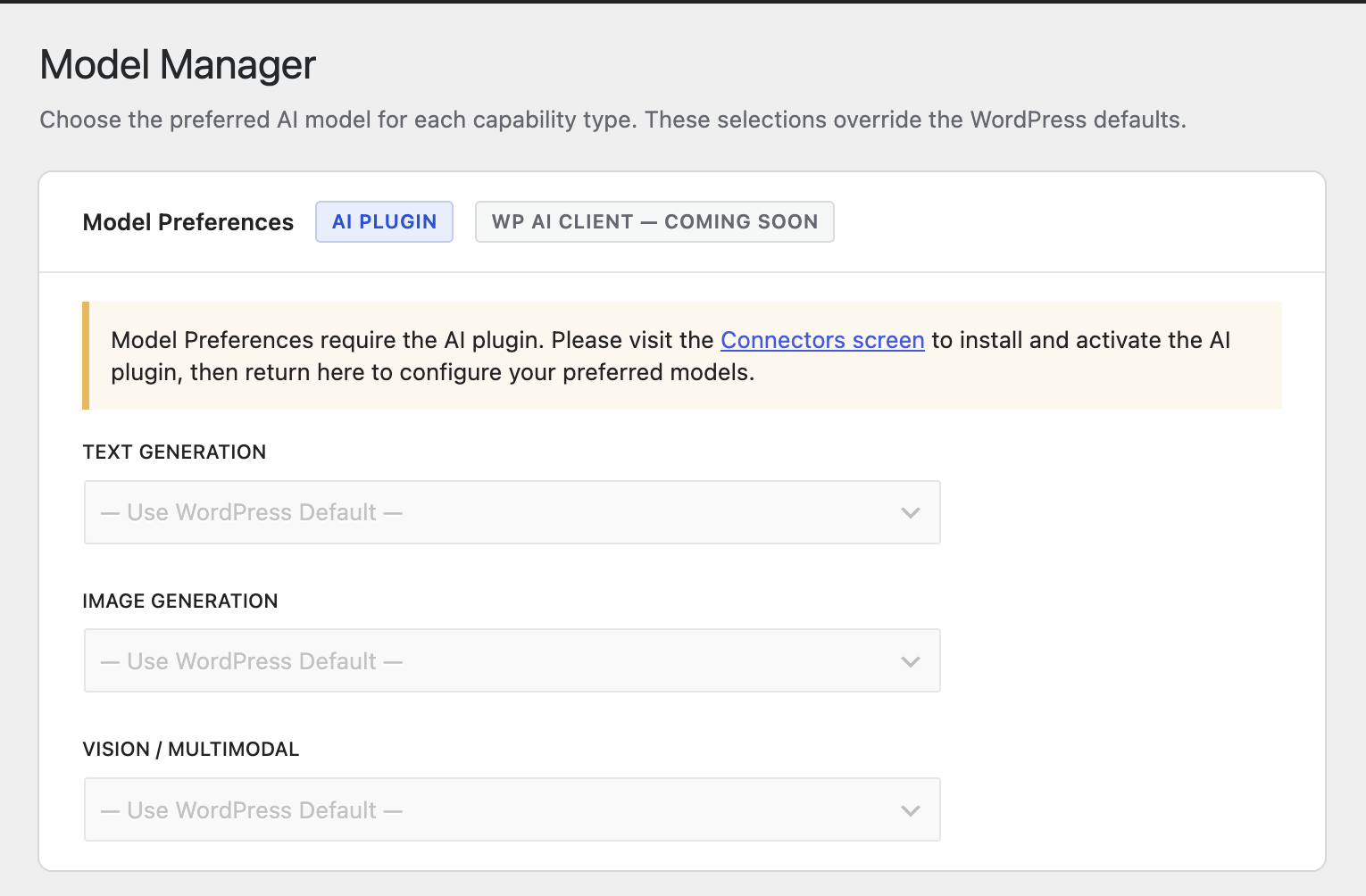
The Model Manager settings page showing dropdowns for each capability type. 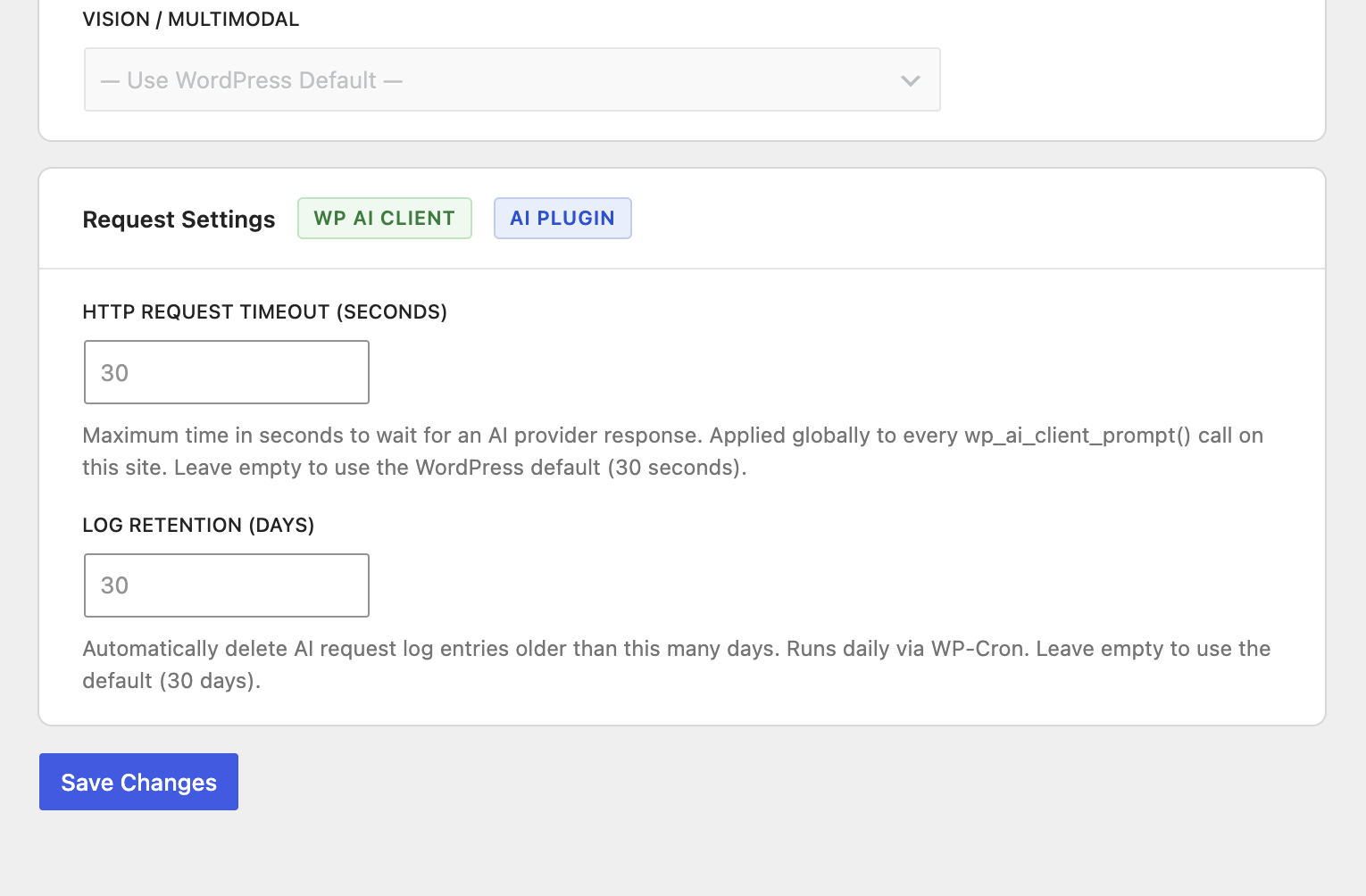
Settings to control the WP AI client Timeout Request 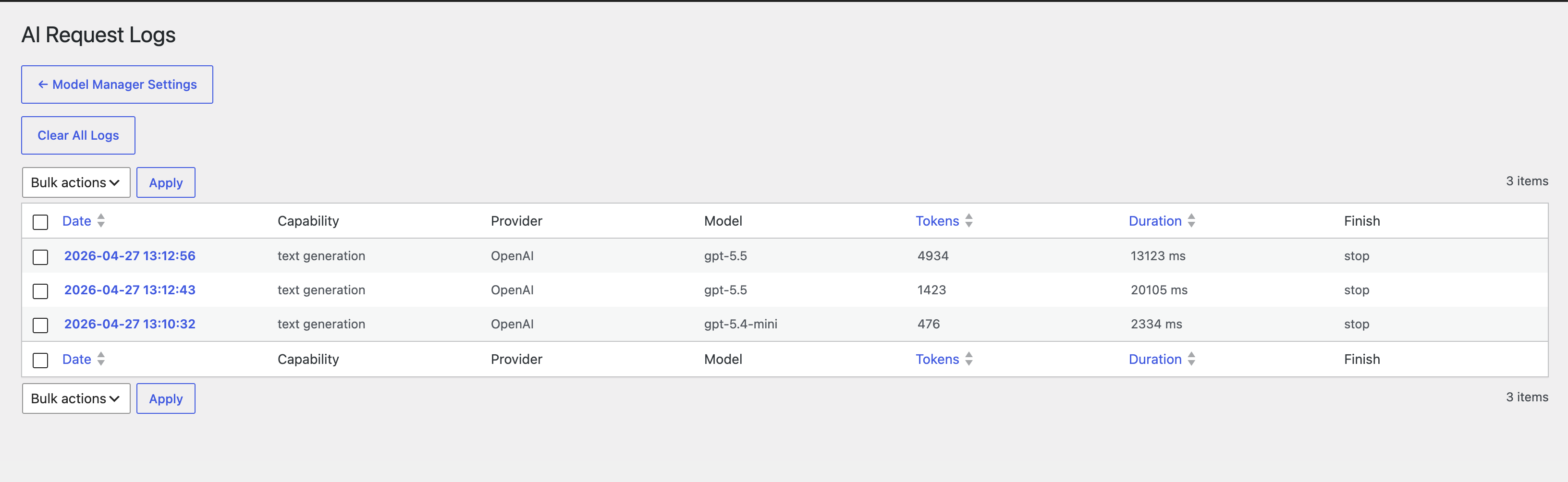
Screenshots to show all the of WP AI Client
نصب
- Upload the
acrossai-model-managerfolder to the/wp-content/plugins/directory, or install through the WordPress Plugins screen directly. - Activate the plugin through the Plugins menu in WordPress.
- Go to Settings > AcrossAI Model Manager.
- Choose your preferred model for each capability type from the dropdowns. Only models from configured and connected providers appear.
- Click Save Changes.
سوالات متداول
-
Do I need any other plugins for this to work?
-
It depends on what you want to use.
- Model Preferences (choosing a preferred model per capability): Yes — the AI plugin must be installed and activated, and at least one AI provider must be configured via the Connectors screen (Settings > Connectors). If the AI plugin is not active, the Model Preferences dropdowns are automatically disabled on the settings page.
- HTTP Request Timeout: No additional plugin required. The timeout setting works with the WordPress 7.0 built-in AI client directly and takes effect for all AI calls on your site.
-
Does this work with the WordPress 7.0 built-in WP AI Client?
-
Not fully yet. The WordPress AI client (introduced in WordPress 7.0) does not currently expose a filter that allows plugins to override the model being used. Model Preferences therefore requires the separate AI plugin which provides the
wpai_preferred_*_modelsfilter hooks this plugin relies on.The HTTP Request Timeout setting does work directly with the WP AI Client via the
wp_ai_client_default_request_timeoutfilter.Full WP AI Client support for Model Preferences is planned for a future release once WordPress core adds the necessary hooks.
-
What happens if my preferred provider loses its API key or connection?
-
The plugin checks whether the provider is currently connected before applying the preference. If the provider is disconnected, WordPress falls back to its default model selection — your preference is preserved in the database and will take effect again once the provider is reconnected.
-
Where is the preference stored?
-
Preferences are stored in the WordPress options table under the key
acai_model_manager_preferencesas a JSON object with one entry per capability type (e.g.{"text_generation":"openai::gpt-4o"}). -
Can I set different models for different capability types?
-
Yes. Text generation, image generation, and vision can each have their own preferred model independently.
-
Will this work with custom or third-party AI providers?
-
Any provider registered with the AI plugin that exposes its models through the standard metadata API will appear automatically in the dropdowns — no additional configuration is needed in this plugin.
نقد و بررسیها
نقد و بررسیای برای این افزونه یافت نشد.
توسعه دهندگان و همکاران
“AcrossAI Model Manager” نرم افزار متن باز است. افراد زیر در این افزونه مشارکت کردهاند.
مشارکت کنندگان
ترجمه “AcrossAI Model Manager” به زبان شما.
علاقه مند به توسعه هستید؟
Browse the code, check out the SVN repository, or subscribe to the development log by RSS.
گزارش تغییرات
0.0.7
- Fix admin hook name from
settings_page_totoplevel_page_— resolves missing styles/scripts on the Model Manager settings page (top-level Options menu pages usetoplevel_page_as the hook prefix, notsettings_page_).
0.0.6
- Log failed AI requests (invalid key, network error, timeout) — uses PHP shutdown function to drain any stack entries not popped by
wp_ai_client_after_generate_result; failed rows stored withfinish_reason = 'error'and full elapsed duration. - Capture error messages for failed requests via
http_api_debug— supports OpenAI, Hugging Face, and generic JSON error bodies; error detail shown in log list (tooltip on red badge) and detail view. - Replace
WPAI_PLUGIN_FILEcheck withhas_ai_credentials()— Model Preferences now enables for any configured provider (llama.cpp, OpenAI, etc.), not just when the AI plugin is loaded. - Simplify JS Model Preferences gate — removed
aiPluginActiveflag; section enable/disable is now driven solely byhasAnyProvider(presence of models in the PHP payload).
0.0.5
- Added AI request logging system — every successful AI generation call is now logged to a custom database table (
{prefix}acai_ai_logs). - Logs capture: provider, model, capability, prompt text, response text, token usage (prompt/completion/total/thought), duration (ms), finish reason, and the WordPress user who triggered the request.
- Added source/caller tracking — each log entry records where the AI request originated: plugin slug, theme slug, mu-plugin filename, or WordPress core, along with the relative file path and line number.
- Added Settings > AI Logs admin page with a sortable, paginated log table (date, capability, provider, model, source, tokens, duration). Includes bulk delete and a detail view showing full prompt and response text.
- Added Log Retention setting (days) to the Request Settings card — logs older than the configured number of days are automatically deleted daily via WP-Cron. Default: 30 days.
- Log table is created on plugin activation via
dbDelta()and dropped cleanly on plugin uninstall. - Reduced AGENTS.md size by 40% — split into focused reference docs under
docs/(hooks, classes, JS frontend, decisions).
0.0.4
- Add Feature to track WP AI Client
- Add Screenshots
- Add Video
0.0.3
- Added compatibility badges to settings card headers indicating which AI integration each section supports (WP AI Client, AI Plugin, coming soon).
- Model Preferences section is now disabled when the AI plugin is inactive — shows a warning notice with a direct link to the Connectors screen.
- Model Preferences section is also disabled when the AI plugin is active but no AI providers are configured — shows a distinct notice prompting the user to configure a provider via the Connectors screen.
- Added FAQ entry clarifying WP AI Client support status: HTTP Request Timeout works with WP AI Client today; Model Preferences requires the AI plugin and will gain WP AI Client support in a future release.
- Updated requirements section to clarify that the AI plugin is needed only for Model Preferences; the HTTP Request Timeout works with WordPress 7.0 core directly.
0.0.2
- Updated requirements: now explicitly requires WordPress 7.0+ (built-in AI client) instead of the separate WordPress AI plugin.
- Clarified that at least one AI connector must be configured for models to appear.
0.0.1
- Initial release.
- Settings page with React UI under Settings > AcrossAI Model Manager.
- Per-capability model preference for text generation, image generation, and vision.
- Integrates with the WordPress AI plugin preference filter hooks.
- REST API support for seamless save without page reload.